
Uninstall
Follow the directions below to uninstall software from your operating system or browser.
Windows 11
Uninstall from the Control Panel
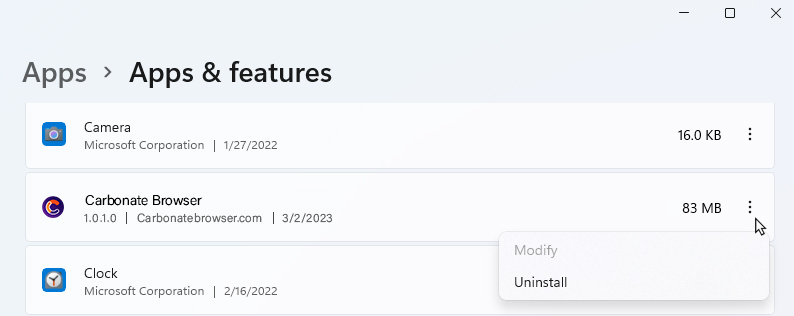
- In the Start menu search box, type remove programs and select the “Add or remove programs” Control panel from the matches. The “Apps > Apps & features” Settings should open.
- Scroll to “Carbonate Browser” in the list of apps.
- Select “Uninstall” from the menu (represented by a stack of three dots) for Carbonate Browser located to the right of its file size.
Windows 10
Uninstall from the Control Panel
- In the Start menu search box, type remove programs and select the “Add or remove programs” Control panel from the matches. The “Apps & features” Settings should open.
- Scroll to “Carbonate Browser” in the list of apps and select it.
- Select the Uninstall button.

Windows 8
- Swipe in from the right edge of the screen using your mouse (or finger for touchscreen displays), and then click Search .
- Enter Uninstall in the search box and then click the Settings category below the search box.
- Click Uninstall a Program from list on the left side of the screen.
- From the Programs and Features dialog box that opens, select the program you wish to uninstall from your computer.
- Click Uninstall .
- Restart your computer.
Windows 7
- From the Start Menu find and select Control Panel
- Select Programs and Features icon
- Select the program you wish to uninstall
- Click on the Uninstall button (or right-click the program and select Uninstall option)
- Follow the prompts to finish the uninstall process
Windows Vista
- From the Start Menu find and select Control Panel
- Select Programs icon and click the Uninstall A Program link
- Select the program you wish to uninstall
- Click the Uninstall/Change button (or right-click the program and select Uninstall option)
- Follow the prompts to finish the uninstall process
Windows XP
- From the Start Menu find and select Control Panel
- Select the Add or Remove Programs icon
- Select the program you wish to uninstall
- Click the Add/Remove button
- Follow the prompts to finish the uninstall process